
Fluum Connect now lets you filter out matches come from your connections, your followers, or both. This applies to LinkedIn and Instagram. The filter gives you control over who Fluum includes in your match pool, so you avoid getting matched with people you already know or work with.
Why This Filter Matters
Not everyone in your network is a prospect. Your LinkedIn connections include colleagues, friends, former classmates, and existing clients. Your Instagram followers include a mix of personal contacts, fans, and people who found you through content.
Without filtering, Fluum might match you with someone you already have a relationship with. That wastes one of your daily intro requests on a person you could message directly.
The exclude filter lets you separate these groups. You can tell Fluum to only match you with people outside your direct connections, keeping your intro requests focused on new prospects you do not already know.
How the Filter Works
Go to your Fluum Connect settings. You will see options to include or exclude connections and followers for both LinkedIn and Instagram.
For LinkedIn, you can choose to exclude your 1st-degree connections from matches. This means Fluum will not suggest people you are already directly connected with. Instead, it will focus on 2nd-degree and broader network matches where a warm intro path exists but you do not have a direct relationship yet.
For Instagram, you can choose to exclude people you follow or who follow you. This is useful if your Instagram audience overlaps heavily with your personal network and you want Fluum to focus on new prospects.
You can adjust these filters at any time. Changes apply to your next batch of matches.
Why You Should Connect Your LinkedIn Account
LinkedIn connections are the most valuable input for B2B warm introductions. When you import your LinkedIn connections into Fluum, three things improve.
First, your match quality goes up. Fluum uses your connections to find 2nd-degree paths to prospects. If you and a prospect share a mutual connection, that introduction carries more weight and converts at higher rates.
Second, your ICP matching becomes more precise. Fluum reads the professional context from your network (industries, roles, company sizes) to better understand who you work with and who you should be introduced to. The more data Fluum has about your professional world, the more relevant your daily matches become.
Third, your warm intro paths get stronger. A warm introduction works because there is context or a shared connection between you and the prospect. LinkedIn connections are the primary source of these paths in B2B. Without them, Fluum relies on broader contextual signals, which still work but produce fewer direct warm paths.
If you have not connected your LinkedIn account yet, follow these steps.
How to Import Your LinkedIn Connections into Fluum
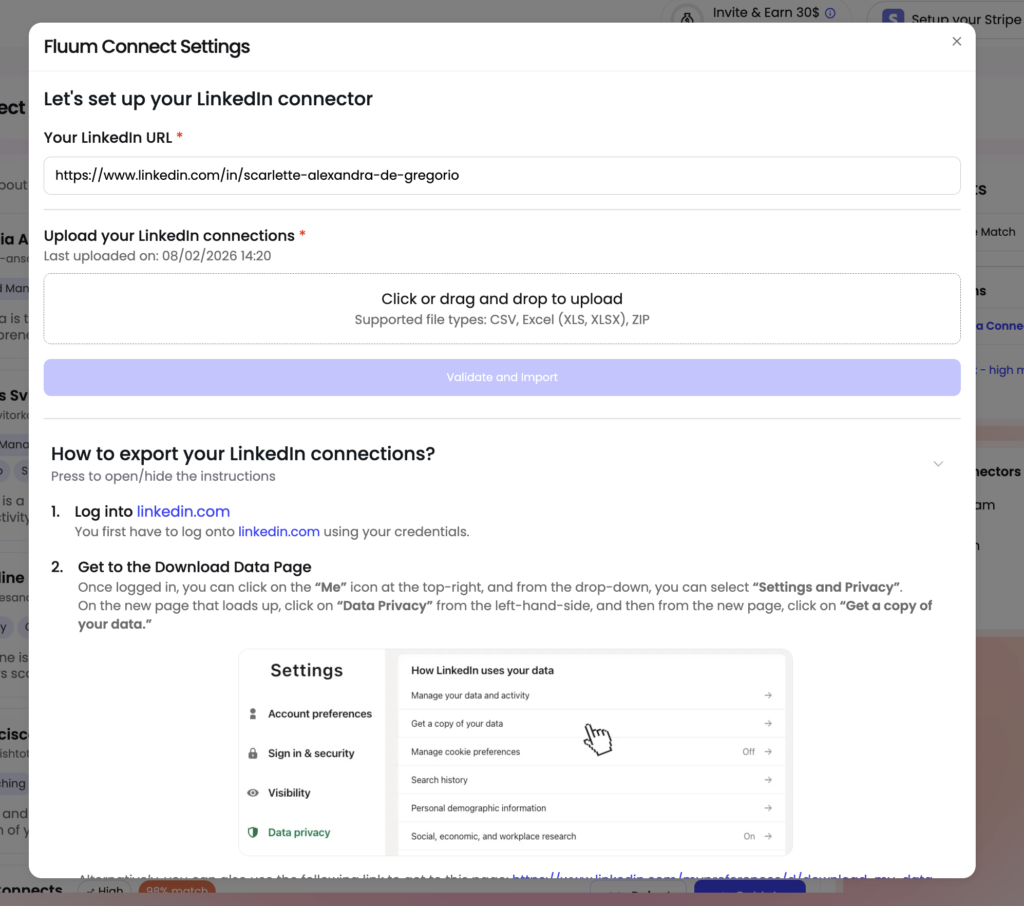
The process has two parts: exporting your data from LinkedIn, then uploading it to Fluum.
Step 1: Open Fluum Connect Settings. In your Fluum dashboard, open the Fluum Connect Settings panel. You will see a section called “Let’s set up your LinkedIn connector.” Enter your LinkedIn profile URL in the field provided.
Step 2: Export your connections from LinkedIn. Log into linkedin.com. Click the “Me” icon at the top right, then select “Settings and Privacy.” On the settings page, click “Data Privacy” from the left menu. Click “Get a copy of your data.” You can also go directly to https://www.linkedin.com/mypreferences/d/download-my-data.
Step 3: Request your data archive. On the Download my data page, select the option to download a larger data archive that includes connections, contacts, and account history. Click “Request archive.” You may be asked to enter your LinkedIn password to confirm. LinkedIn will prepare your file and send you an email when it is ready. This usually takes a few minutes but can take up to 24 hours.
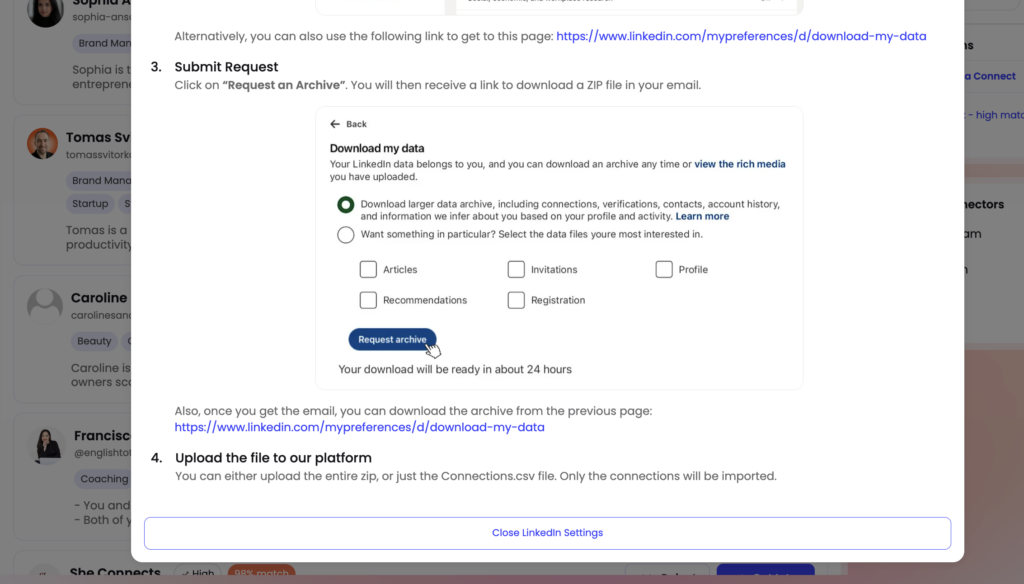
Step 4: Download and upload to Fluum. Once you receive the email from LinkedIn, download the ZIP file. You can also download it directly from https://www.linkedin.com/mypreferences/d/download-my-data. Go back to the Fluum Connect Settings panel and use the upload area to drag and drop your file. Fluum accepts CSV, Excel (XLS, XLSX), and ZIP files. You can upload the entire ZIP or the Connections.csv file from inside it. Only the connections data will be imported.
Step 5: Validate and import. Click the “Validate and Import” button. Fluum will process your connections and start using them to identify warm intro paths to your matches. Processing may take a moment, so if you do not see all connections immediately, refresh the page after a couple of minutes.
You can re-upload your connections at any time to keep them current. The settings panel shows when your last upload was made.
How to Get the Best Results from This Filter
Start by connecting your LinkedIn account and importing your connections. Then enable the exclude filter for 1st-degree connections. This combination gives Fluum the data it needs to find warm paths while keeping your matches focused on people you have not spoken to yet.
Review your ICP settings at the same time. A specific ICP combined with the exclude filter means Fluum is working with two strong constraints: it knows who you want to reach and it knows who to skip. That produces the highest-quality matches.
For Instagram, use the exclude filter if your follower base is mostly personal contacts or existing clients. If your Instagram audience is largely prospects and potential buyers, you may want to keep followers included.
Check your matches daily and reject any that are not relevant. Rejections with a reason help Fluum learn your preferences and improve future suggestions.
Frequently Asked Questions
Will excluding connections reduce my number of matches? No it will not and the matches you receive will be more useful going forward. Getting matched with people you already know does not add value. The filter removes noise so your intro requests go to new prospects.
Can I change the filter later? Yes. You can toggle the exclude settings on or off at any time from your Fluum Connect settings. Changes apply to your next round of matches.
Does this work if I have not connected LinkedIn yet? The filter applies to the networks you have connected. If you have only connected Instagram, the filter will apply to Instagram followers and follows. To get the full benefit, connect LinkedIn as well.
What if I want to exclude connections on one platform but not the other? You can set filters independently for LinkedIn and Instagram. For example, you could exclude LinkedIn 1st-degree connections while keeping Instagram followers in your match pool.
Does importing LinkedIn connections share my data publicly? No. Your LinkedIn connections are used by Fluum to identify warm intro paths and improve match quality on your account only. They are not shared with other users or displayed publicly.
For more help, visit help.fluum.ai or email the Fluum team at contact@fluum.ai.
Leave a Reply